FlClash Download & Installation Guide
A modern GUI client based on Tauri, designed for cross-platform use on Windows, macOS, Linux, and Android. The original FlClash has been discontinued; it is recommended to use the more stable successor if available.
FlClash Download
| Platform | Version | Proxy Accelerated | Direct GitHub |
|---|---|---|---|
| Windows | 0.8.90 | Download | Download |
| MacOS | 0.8.90 | Download | Download |
| Android | 0.8.90 | Download | Download |
| Linux | 0.8.90 | Download | Download |
Note:
Proxy Accelerated: Use a jump proxy to speed up access to GitHub. If direct GitHub is too slow, try Proxy Accelerated download.
Installation Steps
1. Install the Application
- If your CPU architecture is not listed above, check the official repository↗ for more options.
2. Get a Subscription
⚠️ Important:
Please note that FlClash is a proxy tool, not a proxy service provider. Installing it alone does not enable internet access. You need a how-choose-service (service provider) to get started. If you are unsure how to choose a provider, read How to Choose the Right Provider↗.
If you don't have a how-choose-service yet, Learn how to choose a provider↗
- Log in to the provider's official website
- Click to import how-choose-service
- Click to copy how-choose-service

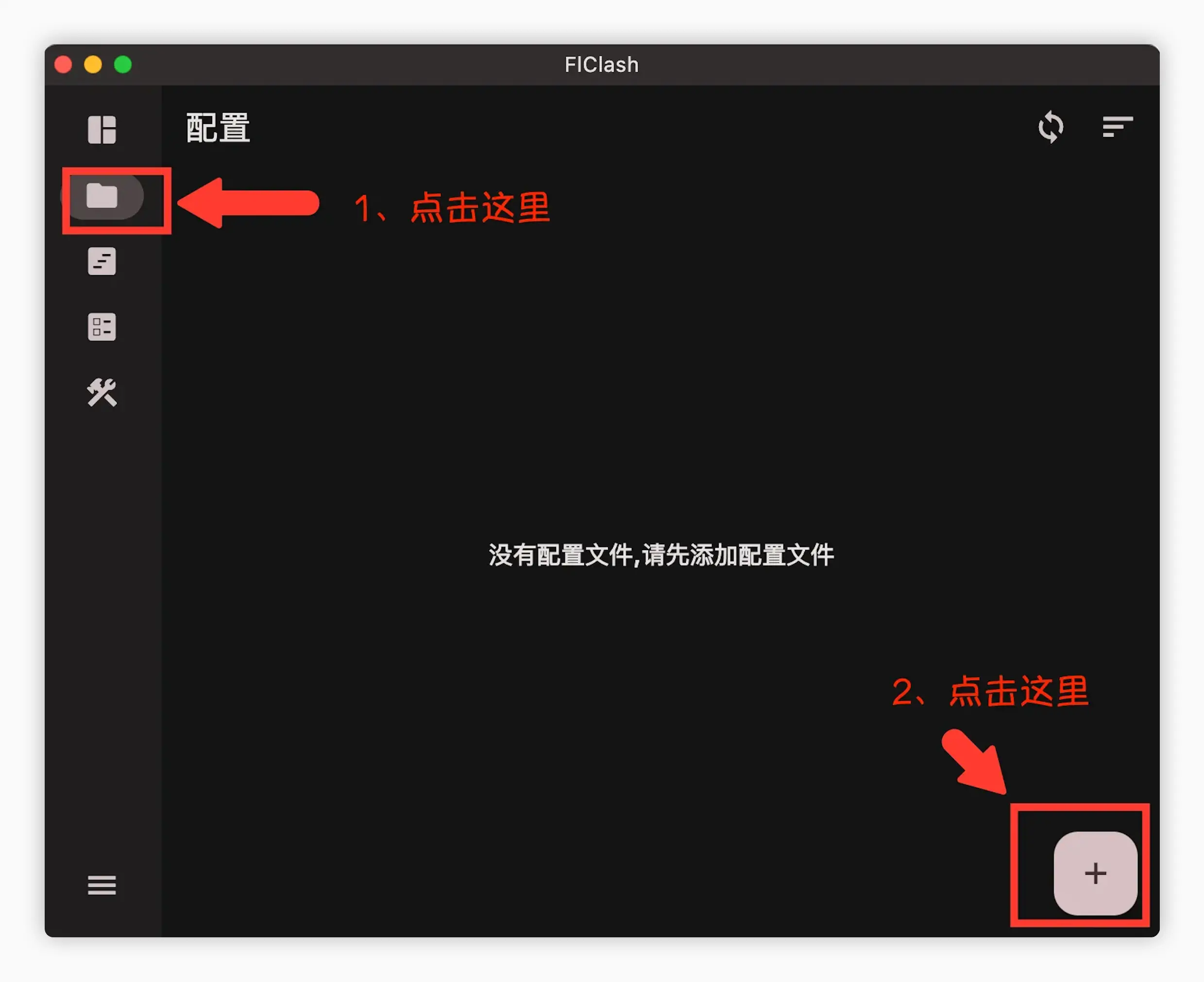
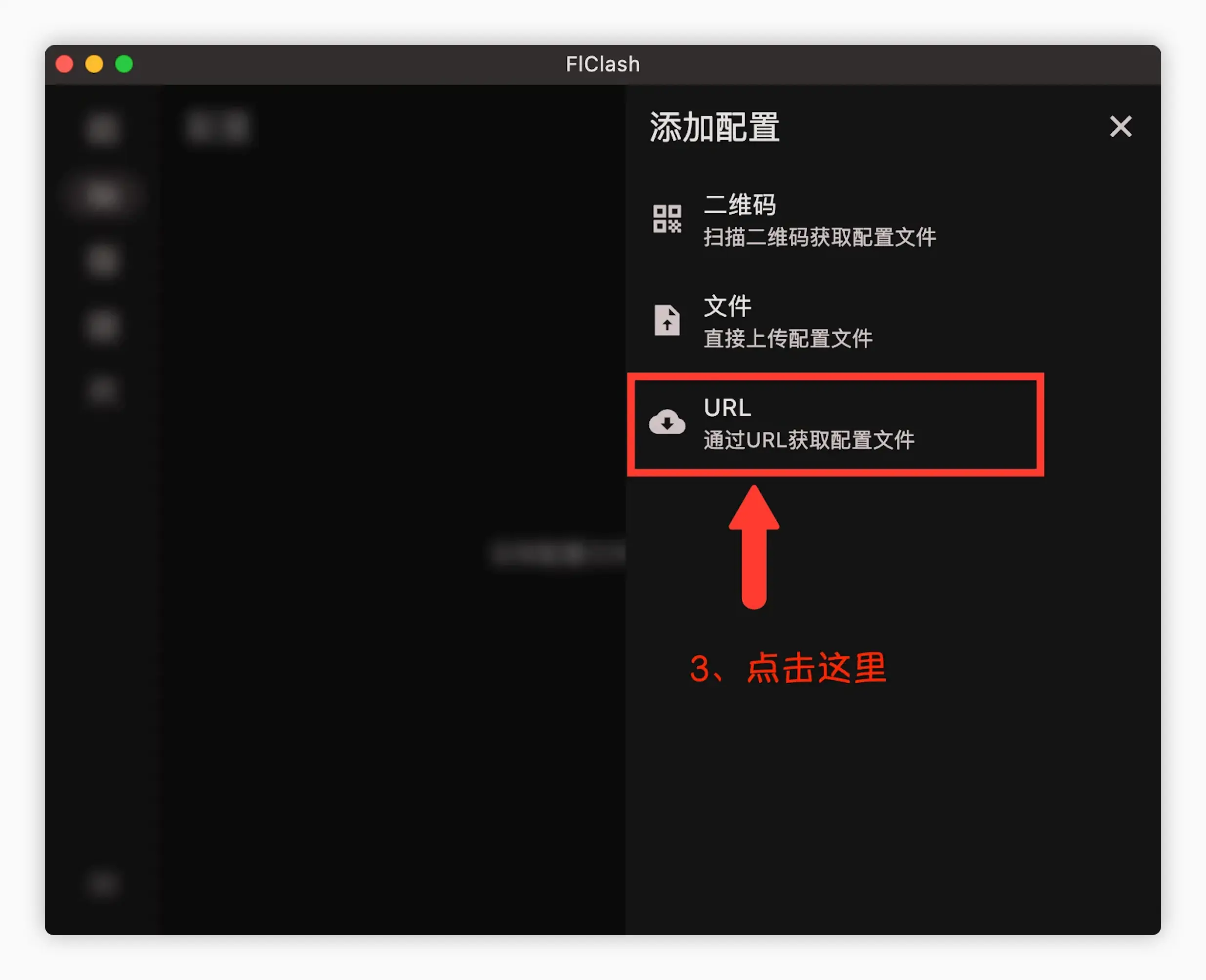
3. Import Subscription
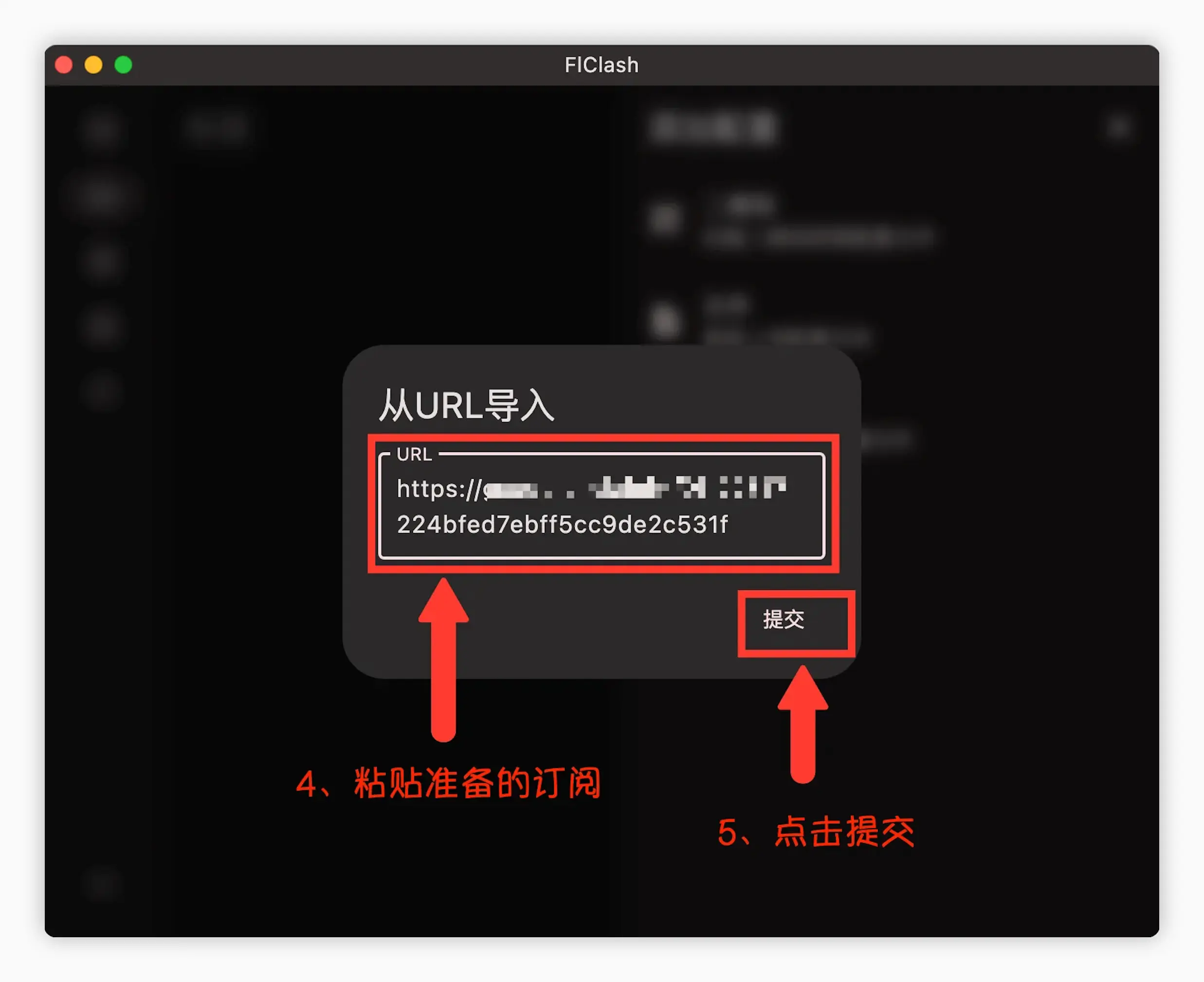
- Paste the how-choose-service address
- Click to download how-choose-service
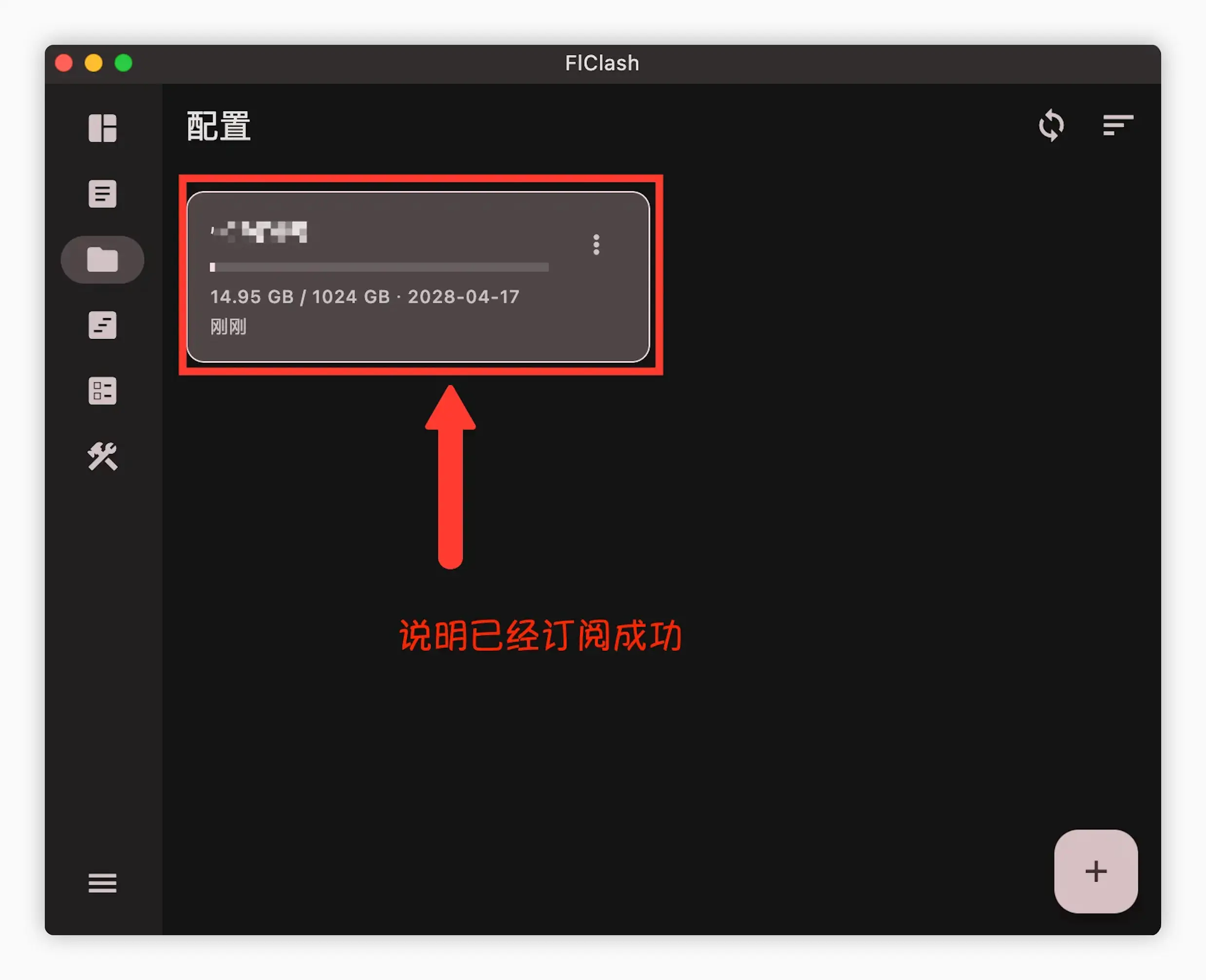
4. Start Proxy
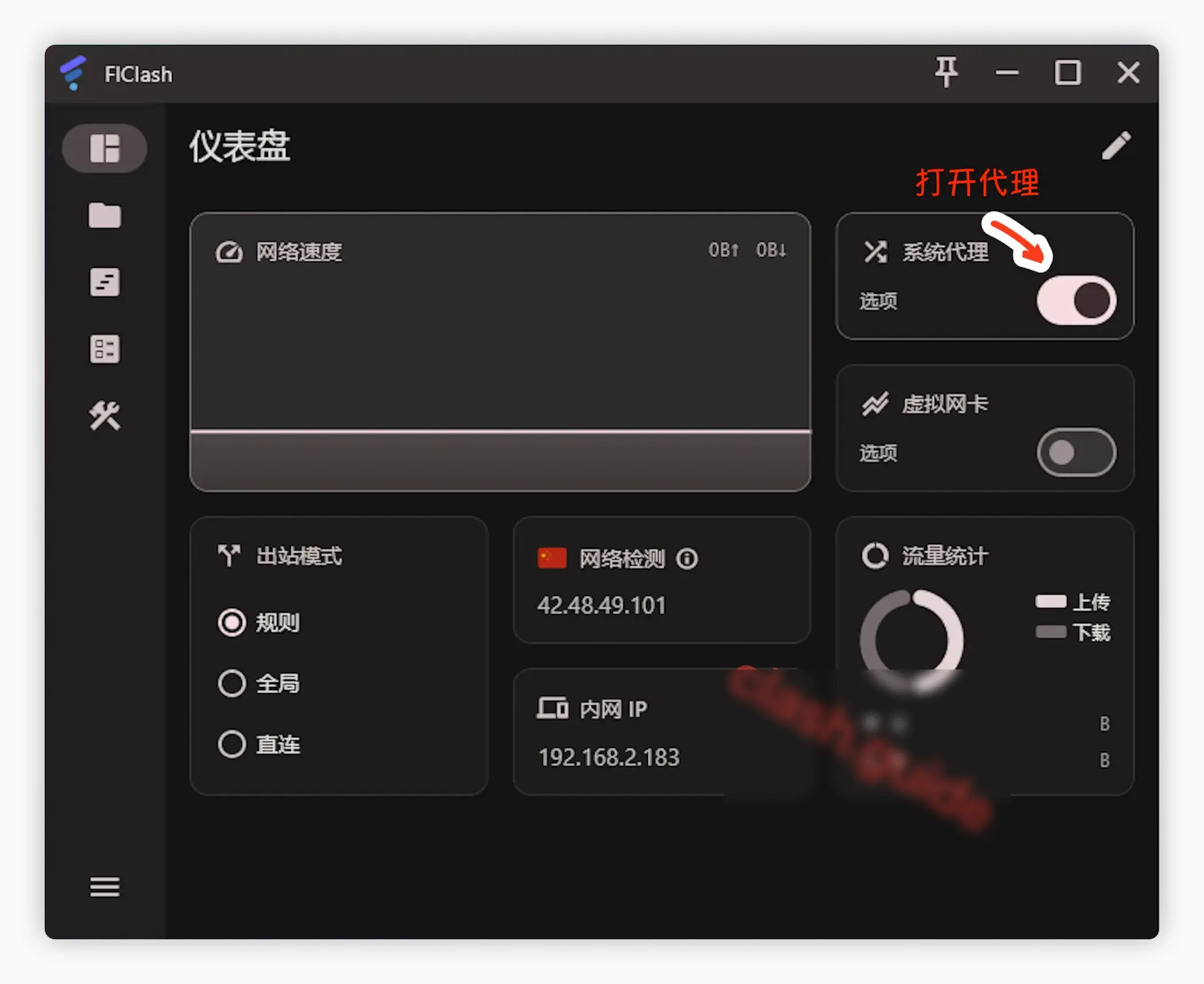
- Click to start the proxy